Inviting Household Members
Household members are people who have access to your household information—family members, household staff, or property managers.
Why Invite Members?
Inviting members helps you:
- Share responsibility for tasks and maintenance
- Collaborate on lists, tasks, and schedules
- Keep everyone updated on household information
- Delegate tasks to specific members
How to Invite Members
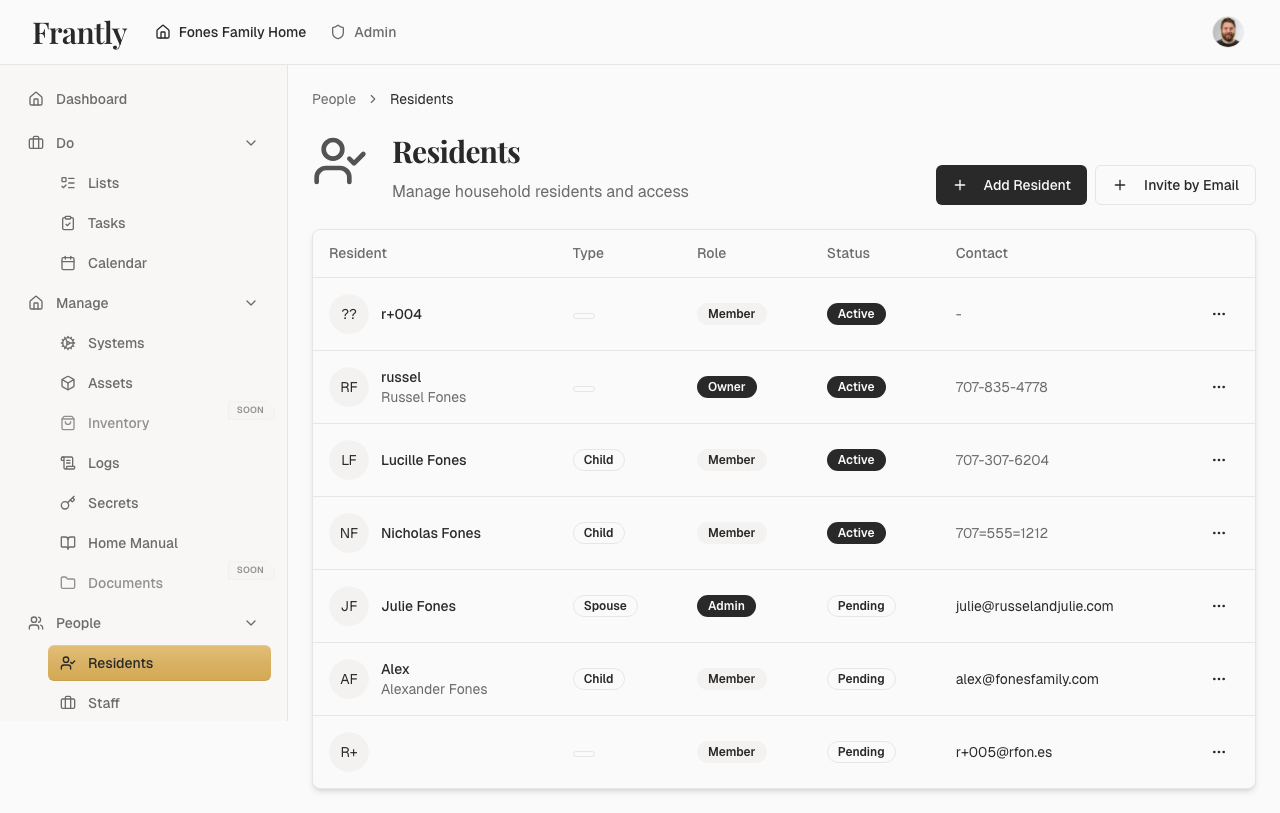
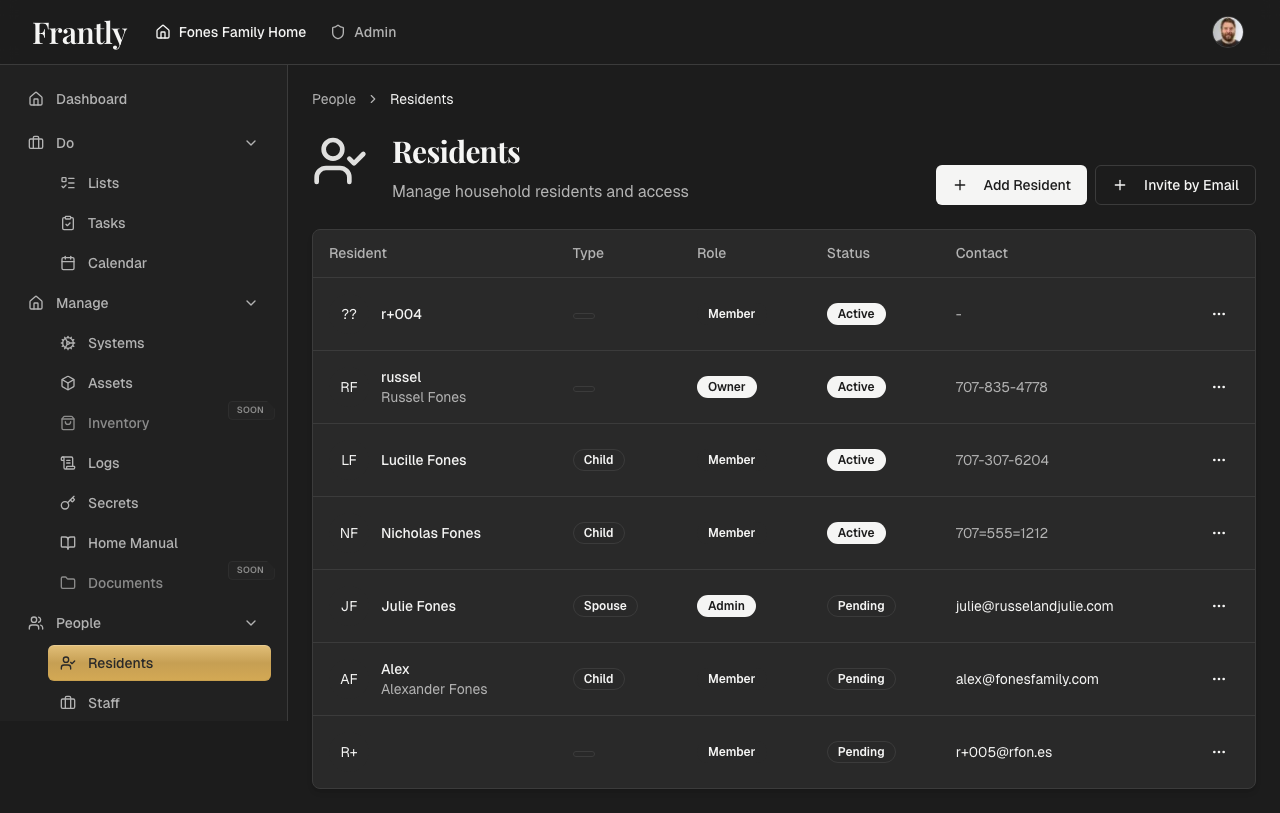
- Go to People → Residents or People → Staff in your household
- Click "Add Member" or "Invite Member"
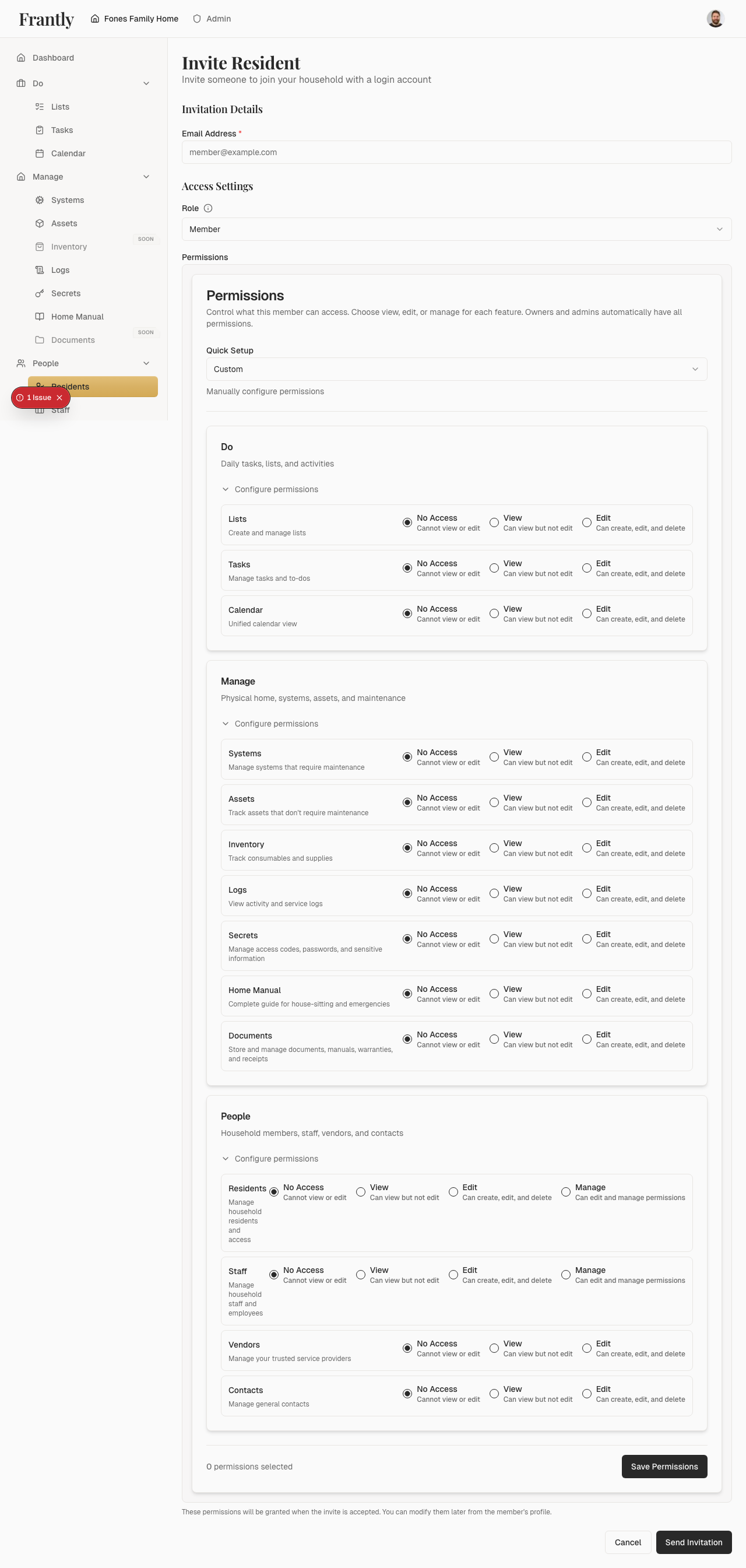
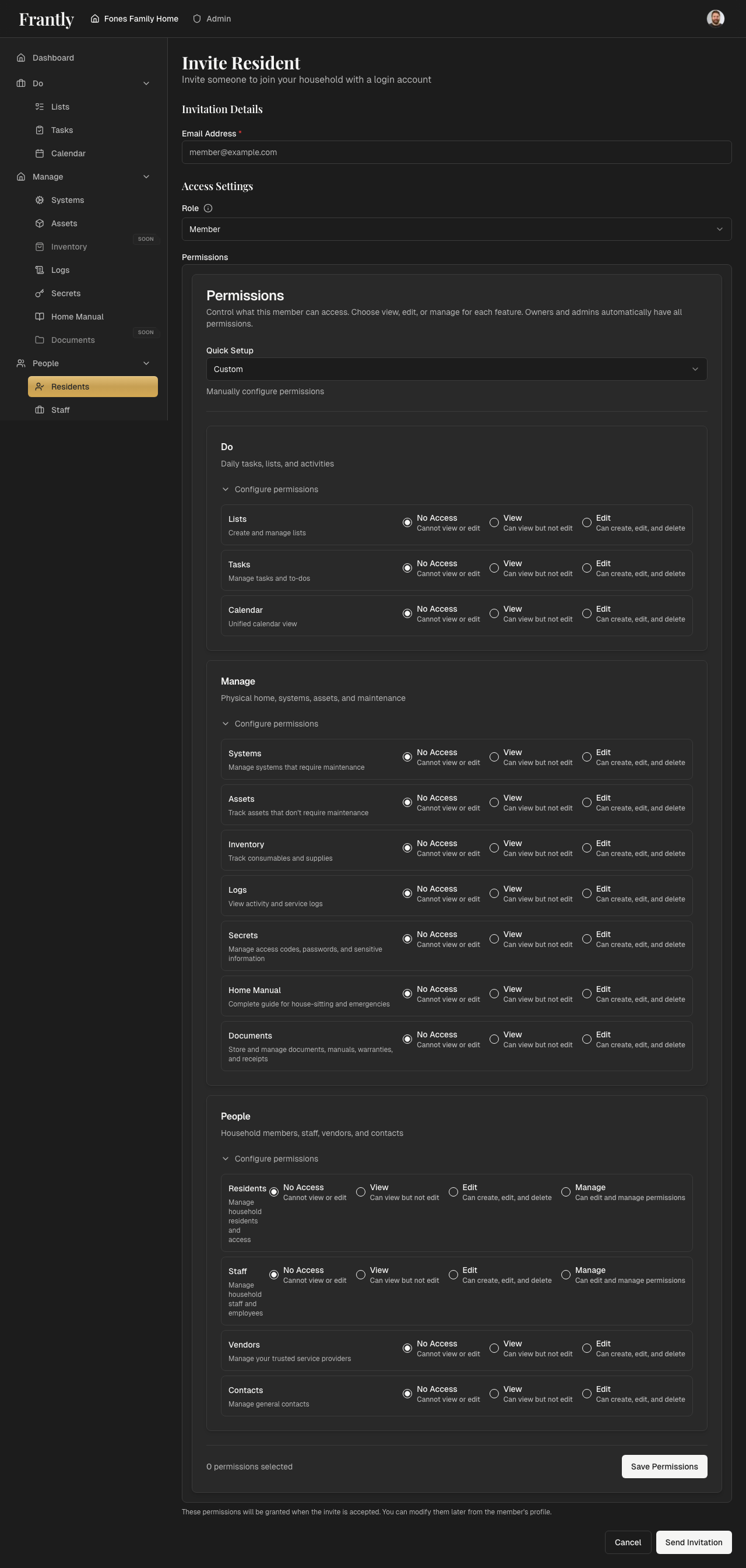
- Enter the person's email address
- Choose their role:
- Member - Custom permissions you control. Choose what they can view, edit, or manage.
- Admin - Full access to everything. Can manage members, permissions, and all household features.
- If you chose Member, select their permissions:
- Choose a preset (View Only, Editor, Admin, or Custom)
- Or customize permissions for each feature
- See Permissions for details about permission levels
- Click "Send Invitation"
What Happens Next?
The person receives an email invitation with a secure link. When they click the link:
- If they already have an account: They sign in and the invitation is automatically accepted
- If they're new: They create an account, verify their email, and the invitation is automatically accepted
- Permissions are granted: If you set permissions for a Member role, they're automatically granted when the invitation is accepted
Note: Invitations expire after 7 days. If an invitation expires, you can send a new one.
Managing Permissions
To change a member's permissions:
- Go to People → Residents or People → Staff
- Find the member
- Click their name or the edit button
- Go to the Permissions section
- Modify their permissions as needed
- Save your changes
Changes take effect immediately. See Permissions for more information about managing permissions.
Removing Members
To remove a member:
- Go to People → Residents
- Find the member
- Click remove or delete
- Confirm the removal
Note: Removing a member immediately revokes their access.
Tips
- Only invite people you trust
- Give people the minimum access they need using permissions
- Start with a permission preset and customize if needed
- Periodically review who has access and their permissions
- Remember that Admins automatically have all permissions—you don't need to set permissions for them
- You can always change permissions later if needs change