Permissions
Permissions control what residents and staff can see and do in your household. The same permission system applies to both residents and staff members.
Permission Structure
Permissions are organized into three sections:
- Do - Lists, Tasks, Calendar
- Manage - Systems, Assets, Inventory, Logs, Secrets, Home Manual, Documents
- People - Residents, Staff, Vendors, Contacts
Permission Levels
Each feature can have one of three access levels:
- View - Read-only access. Can see information but cannot create, edit, or delete.
- Edit - Full access to create, edit, and delete.
- Manage - Full control including member management (only available for People section features: Residents and Staff).
Permission Presets
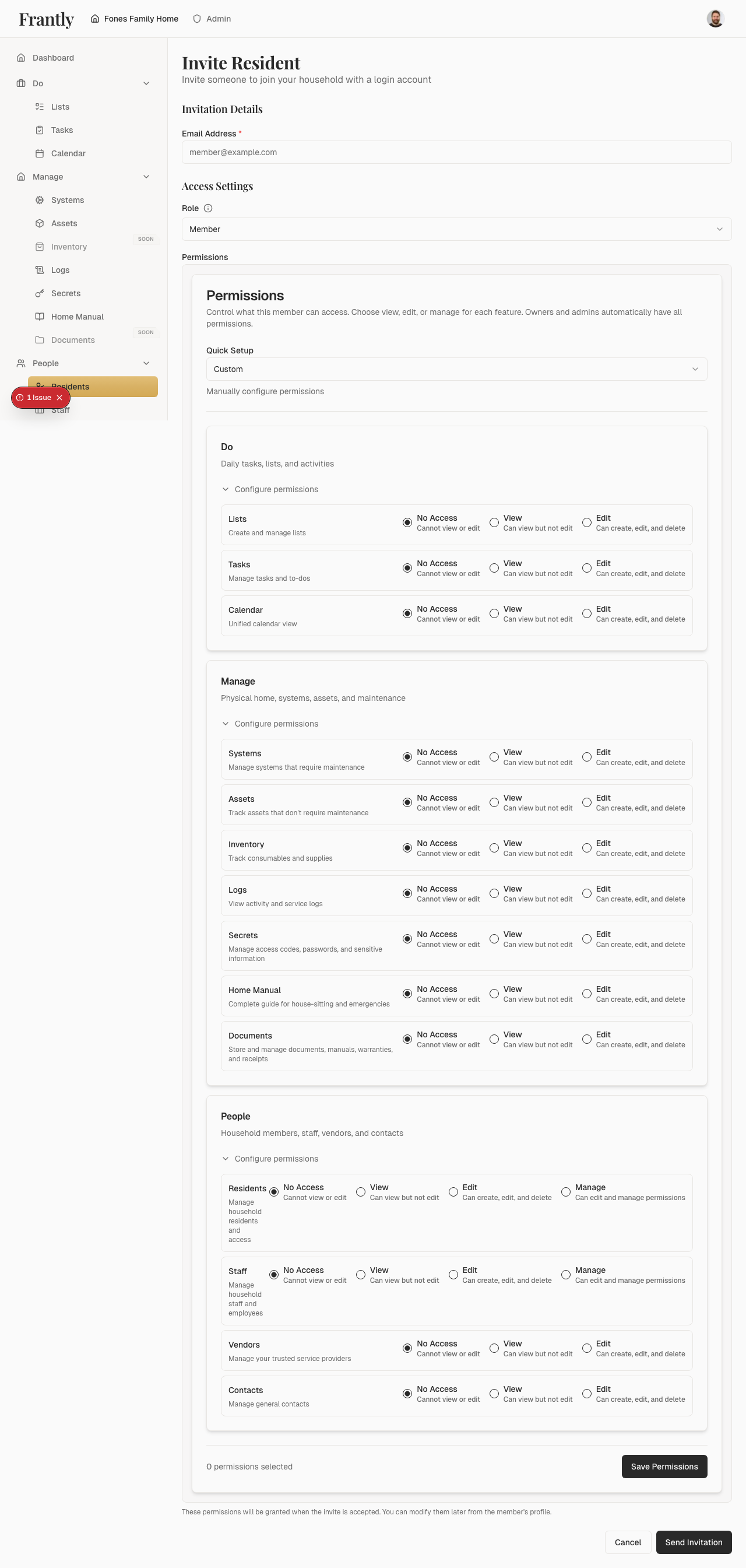
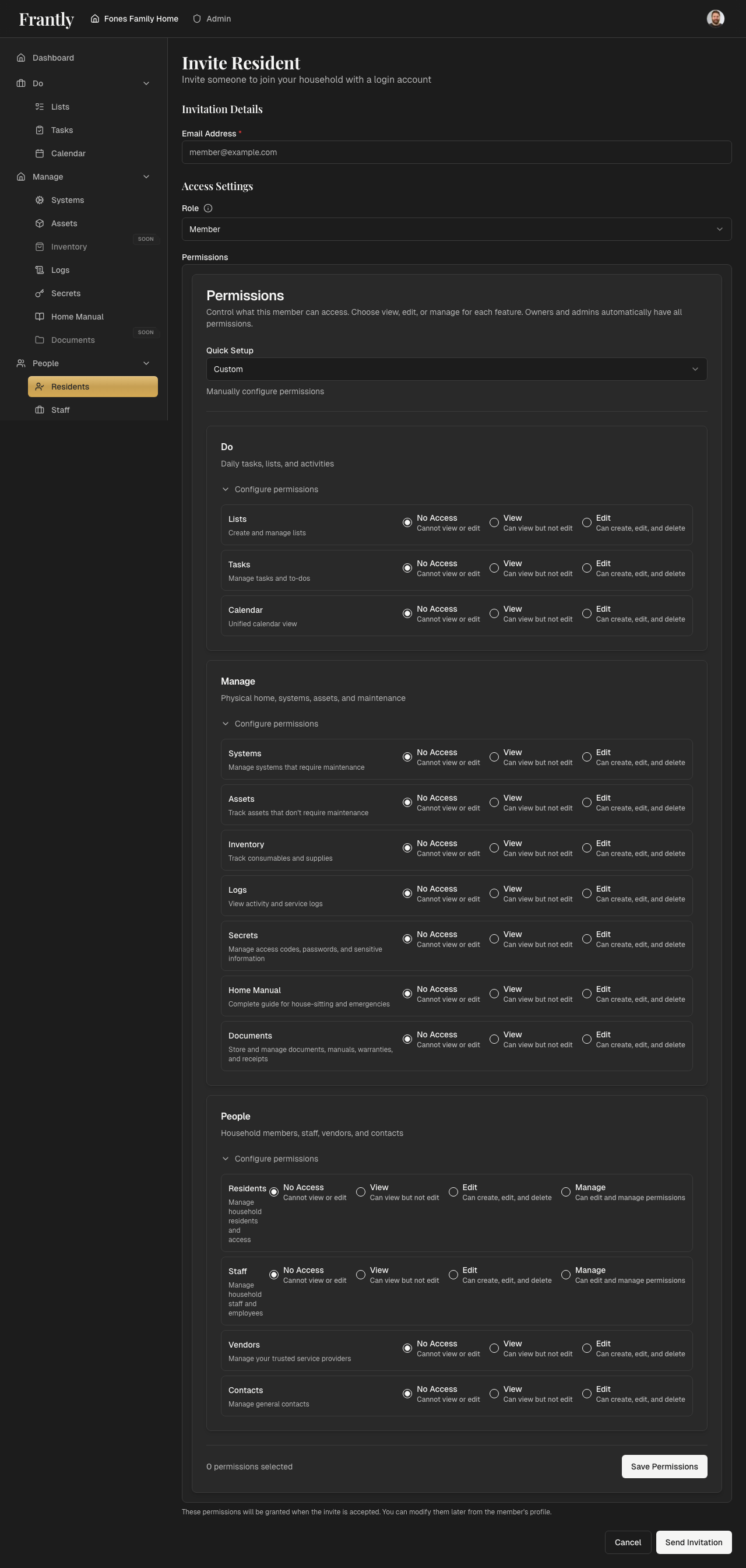
Choose from common presets:
- View Only - View access to all sections. Cannot create, edit, or delete.
- Editor - Full access to create, edit, and delete in all sections.
- Admin - Full access with manage permissions. Can manage residents and staff.
- Custom - Manually configure permissions for each feature.
Note: When you assign someone the Admin role during invitation, they automatically receive all permissions. You don't need to set permissions separately for Admins.
Setting Permissions During Invitation
When you invite a resident or staff member:
- Choose their role: Member (with custom permissions) or Admin (full access)
- If you chose Member, select permissions using a preset or customize per feature
- Permissions are granted automatically when the invitation is accepted
Managing Permissions
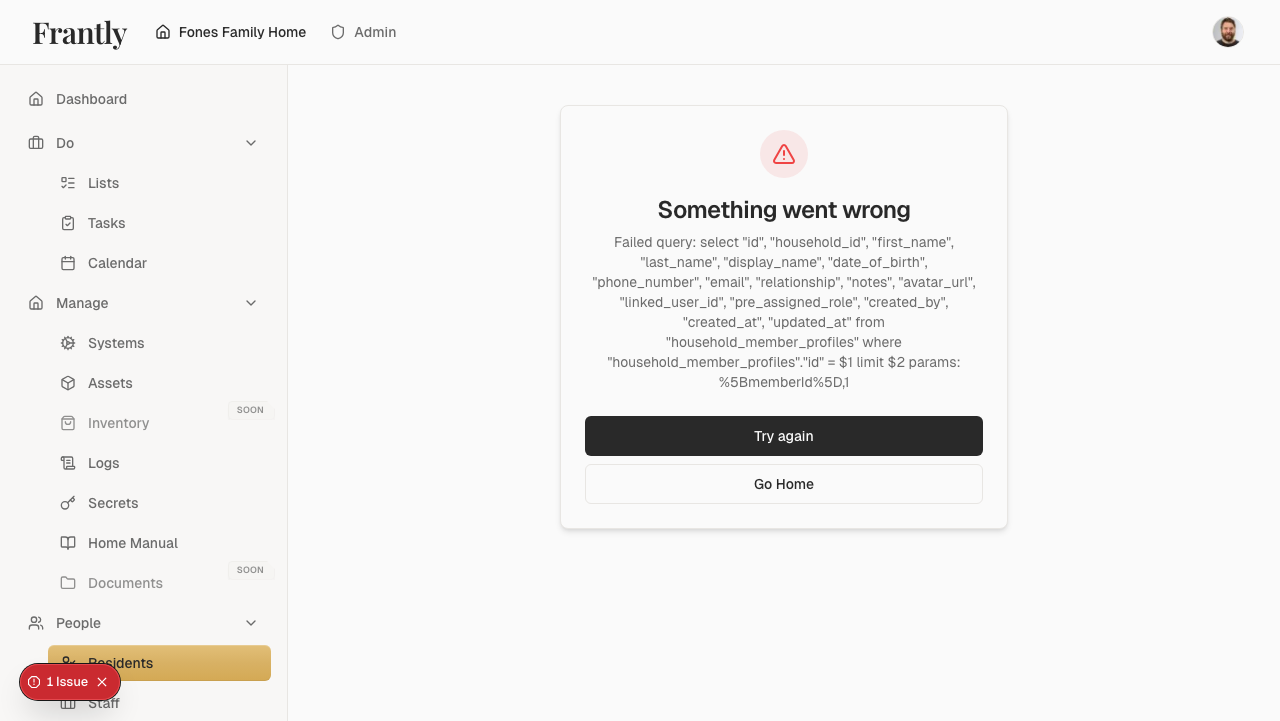
To change permissions:
- Go to People → Residents or People → Staff
- Click the person's name or edit button
- Go to the Permissions section
- Modify permissions and save
Changes take effect immediately.
Tips
- Start with a preset and customize if needed
- Give people the minimum access they need
- Review permissions regularly
- You can always change permissions later