Setting Up Your Profile
Your profile contains your personal information and account settings. Set it up to personalize your Frantly experience.
Accessing Your Profile
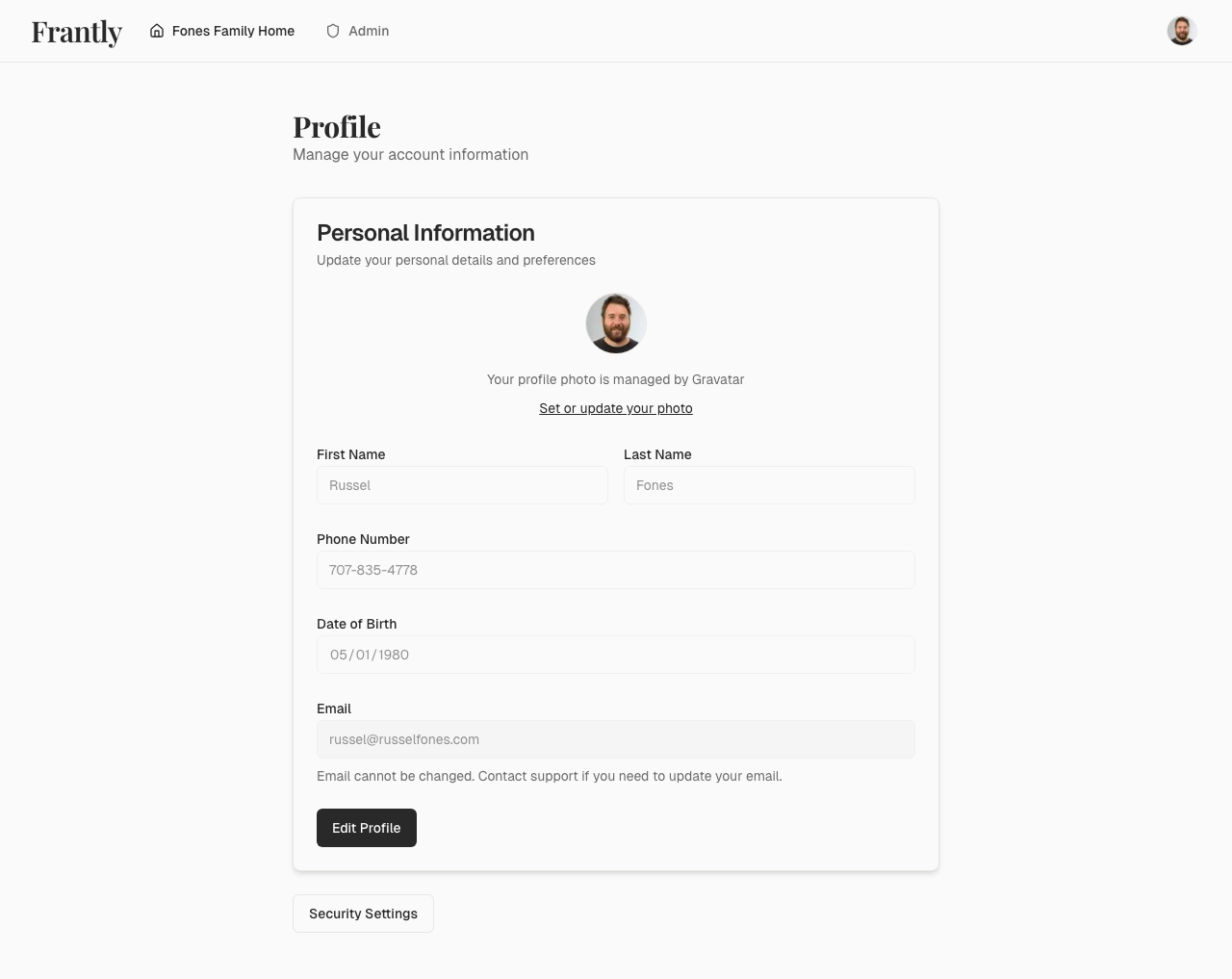
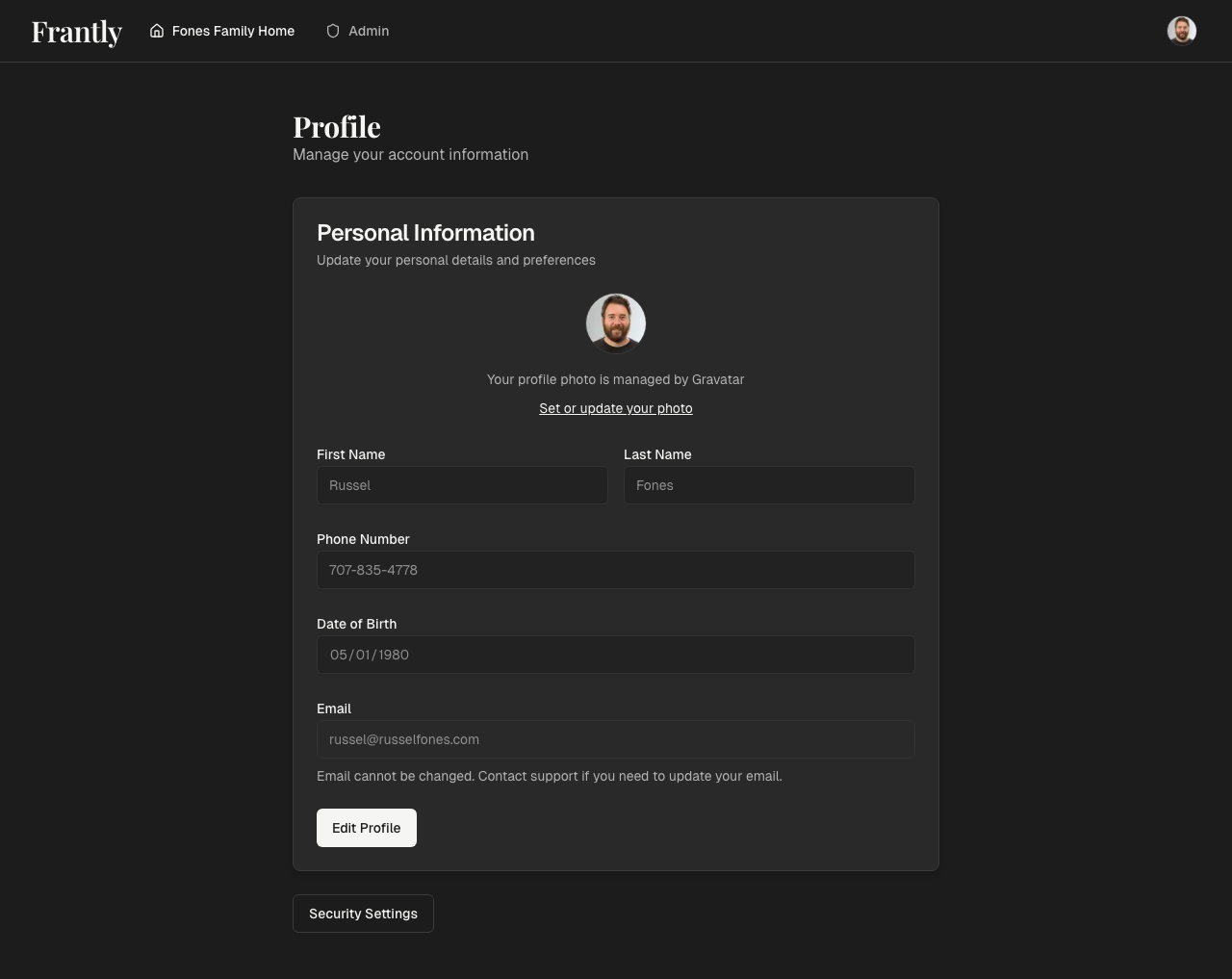
To access your profile:
- Click your name or avatar in the top navigation
- Select "Profile" from the user menu
Profile Information
Basic Information
- Display Name - How your name appears to other household members
- Email - Your account email (used for sign-in)
- Phone - Optional phone number for account recovery
Profile Picture
Add a profile picture that appears:
- In your profile
- When assigned to tasks
- In household member lists
- In comments and activity
Account Settings
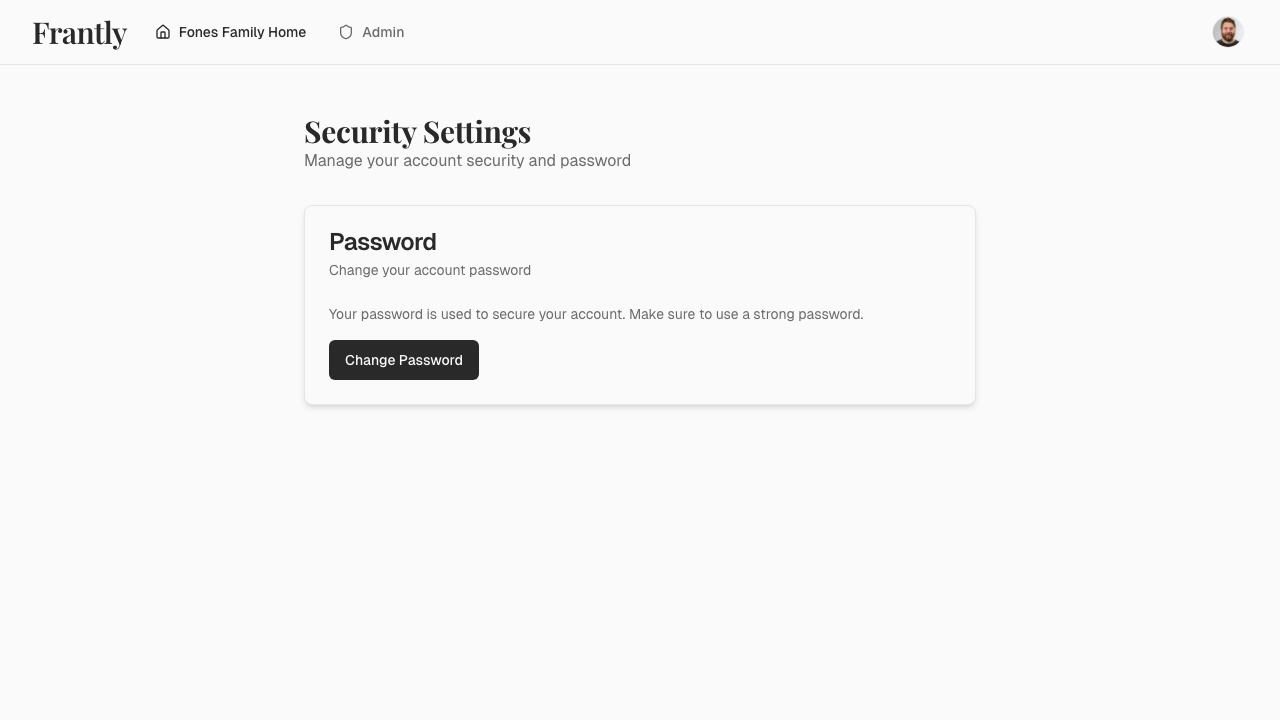
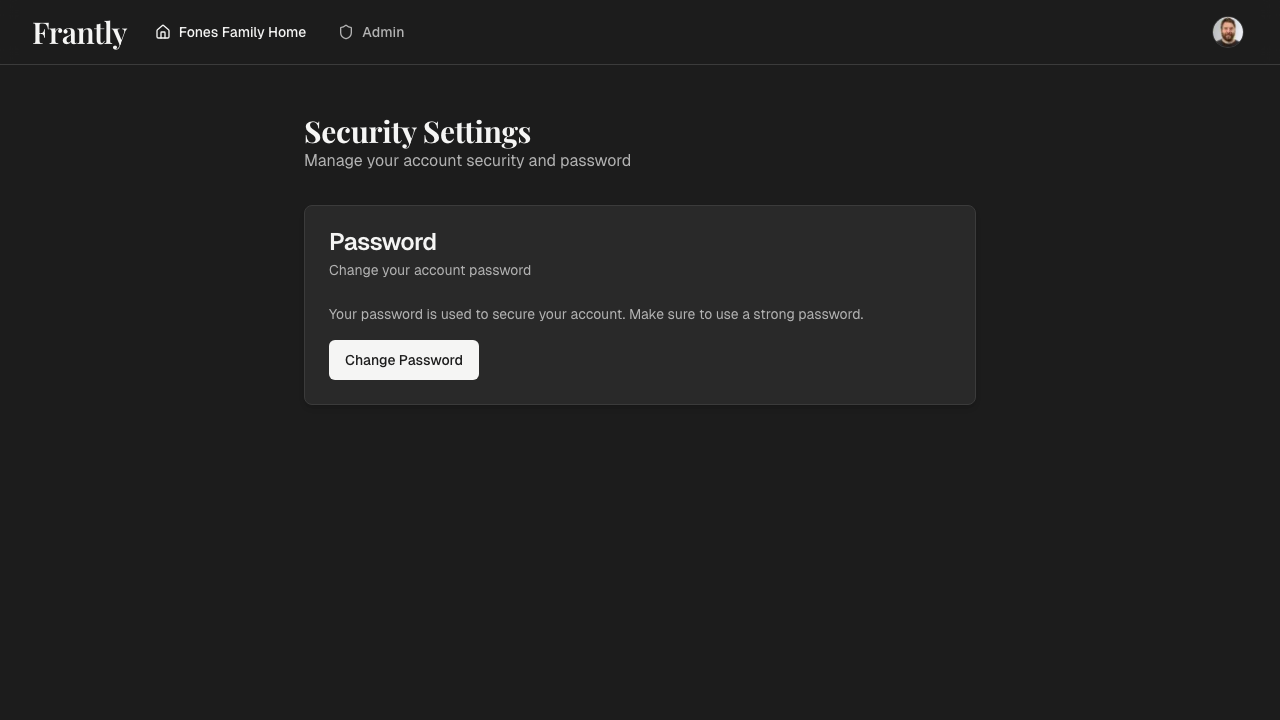
Security
- Password - Change your password anytime
- Two-Factor Authentication - Add an extra layer of security (if available)
- Active Sessions - View and manage devices where you're signed in
Preferences
- Theme - Choose light or dark mode
- Notifications - Control how and when you receive notifications
- Language - Select your preferred language (if available)
Privacy Settings
You can:
- Control what information is visible to household members
- Manage data sharing preferences
- Review privacy policies
- Request data export or deletion
Tips
- Use a clear display name so members can identify you
- Keep your email updated for account recovery and notifications
- Review privacy settings regularly
- Use a strong, unique password